Linksy, a KDE Connect alternative for Linux and Android
Linksy is a free, open-source app that connects an Android phone to a Linux computer, like KDE Connect and its GNOME version, GSConnect. It covers the everyday basics they share: files, the clipboard, Ring, the battery, a touchpad and media controls. It then goes further, with screens, a second display, the phone as a webcam and microphone, and a terminal. KDE Connect is still ahead on phone notifications, texting and platforms other than Linux.
Linksy and KDE Connect side by side
| Feature | Linksy | KDE Connect / GSConnect |
|---|---|---|
| Send files and folders | Yes, resumes if the Wi‑Fi drops | Yes |
| Shared clipboard | Yes, text, images and files | Yes |
| Ring the phone, see its battery | Yes | Yes |
| Phone as touchpad, keyboard and slide clicker | Yes | Yes |
| Control the computer's music from the phone | Yes | Yes |
| Browse the phone's files on the computer | Yes, one folder you choose | Yes |
| Watch and control the computer's screen from the phone | Yes | Mouse and keyboard only |
| See the phone's screen on the computer | Yes | No |
| Tablet or phone as a second display | Yes | Not on GNOME |
| Phone as a webcam (calls, browsers, OBS) | Yes, up to 1080p and 60 fps | No |
| Phone as a microphone | Yes | No |
| A shell on the computer, from the phone | Yes, behind a code | Predefined commands |
| Away from home, over the internet | Yes, end to end encrypted | Same network, or your own VPN |
| Phone notifications on the computer, with reply | Not yet | Yes |
| Texting from the computer | Not yet | Yes |
| Windows, macOS, iPhone | No, Linux and Android only | Yes |
| License | GNU AGPL v3 or later | GNU GPL |
KDE Connect's details change between releases; check its site for the current list.
What Linksy adds
Screens, both ways
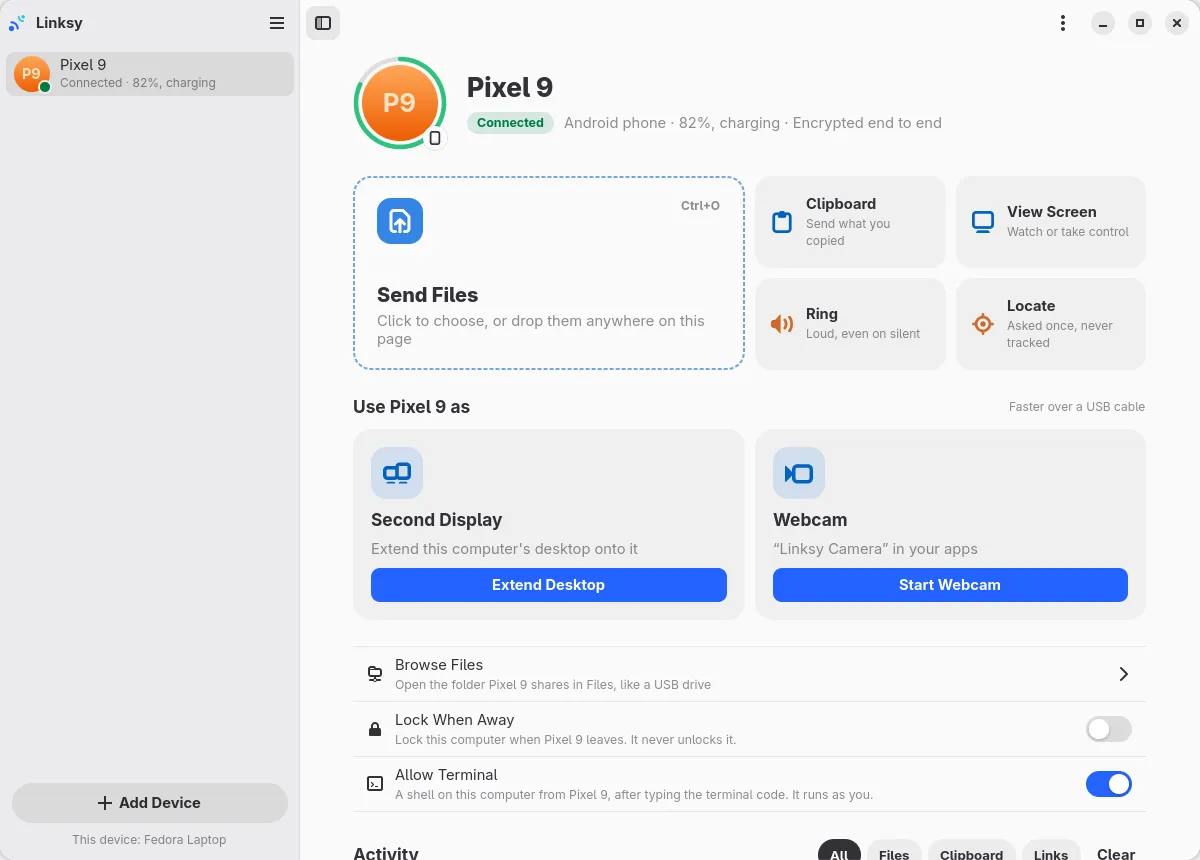
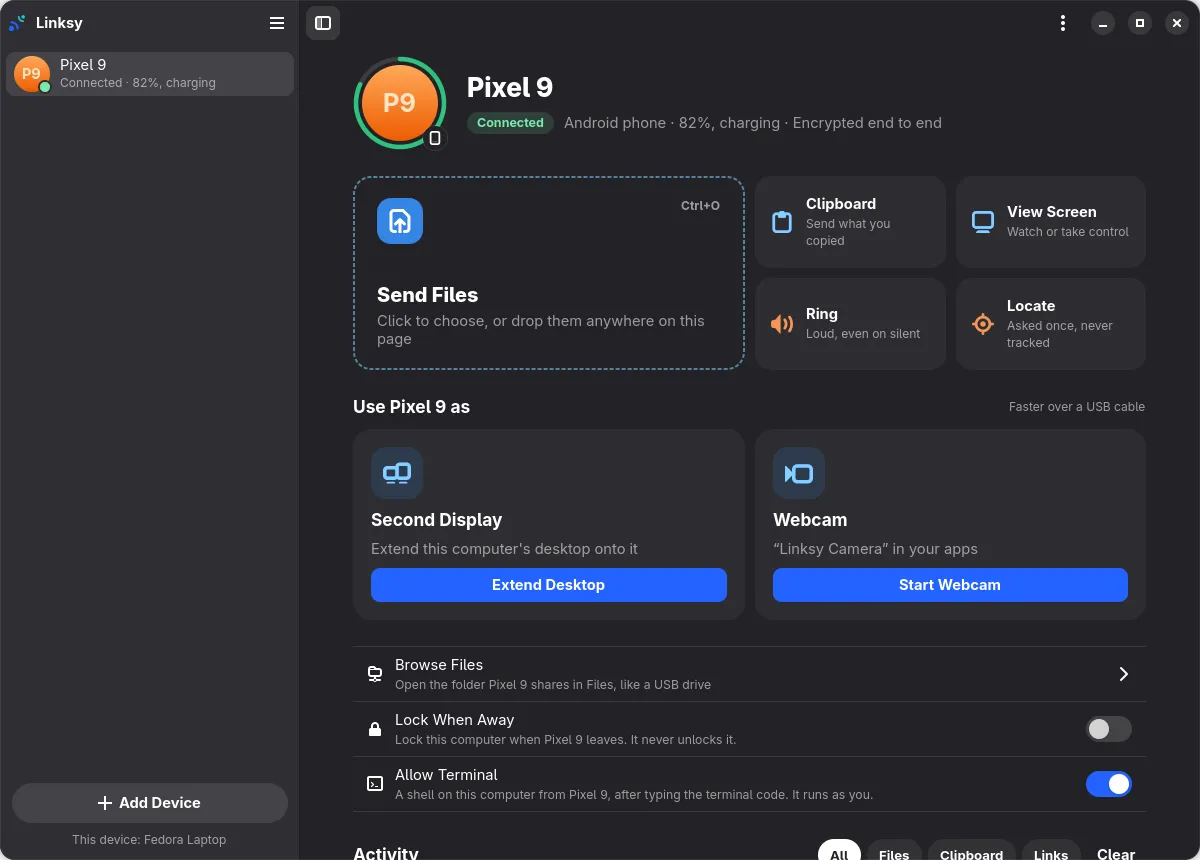
Watch your computer's screen from the couch and take its mouse and keyboard once it says yes, or see your phone's screen on the computer. A tablet or phone also becomes a second display: drag windows onto it, and touch works as the mouse. Video is encoded by the graphics card when it can, so it stays quick.
A webcam and a microphone
Your phone's camera shows up as Linksy Camera in video calls, browsers and OBS, at up to 1080p and 60 frames per second, with zoom, focus and the torch on the computer. Its microphone can be the computer's microphone too. With KDE Connect, those need separate apps, such as DroidCam or AudioRelay.
Camera
- Linksy Camera (Pixel 9)
- Integrated webcam
Quality
Away from home
Once your devices have met on the same Wi‑Fi, they can reach each other over the internet for a week, directly when the networks allow it and otherwise through a relay that can't read what it passes. Here's how the relay works.
- Direct, end-to-end encrypted: files, screens, the camera
- Through the relay only when networks block that: at most 16 KiB/s, still encrypted
Works on any Linux desktop
Linksy is a native app with a small background service, on GNOME, KDE Plasma, Xfce, Cinnamon and other desktops; a Qt 6 version made for Plasma is on the roadmap.
Where KDE Connect is ahead
Notifications and texts. KDE Connect mirrors your phone's notifications, lets you reply, and can send SMS from the computer. Linksy's Android app can't yet: Android restricts notification and SMS access for apps installed outside an app store, and Linksy is installed from its website for now.
More platforms. KDE Connect also runs on Windows, macOS and iPhone. Linksy is for Linux computers and Android phones only, on purpose.
Maturity. KDE Connect has been around for over a decade, with a large community. Linksy is young.
Which one should you use?
- Choose Linksy if you use Linux, on any desktop, with an Android phone and want screens, a second display, a webcam or a microphone in the same app.
- Choose KDE Connect if notifications and texting from the computer matter most, or if you use Windows, macOS or an iPhone.
They don't conflict, so you can also run both: Linksy listens on its own port and doesn't touch KDE Connect's.
Switching from KDE Connect
- Install Linksy on the computer from the download page, and the Android app on the phone.
- Open Linksy on the computer. Finish Setup adds anything your system is missing, including the firewall rule.
- Choose Add Device and scan the QR code with the phone. That's the pairing; there's no account.