Turn on the Gallery: your phone's photos in Linksy
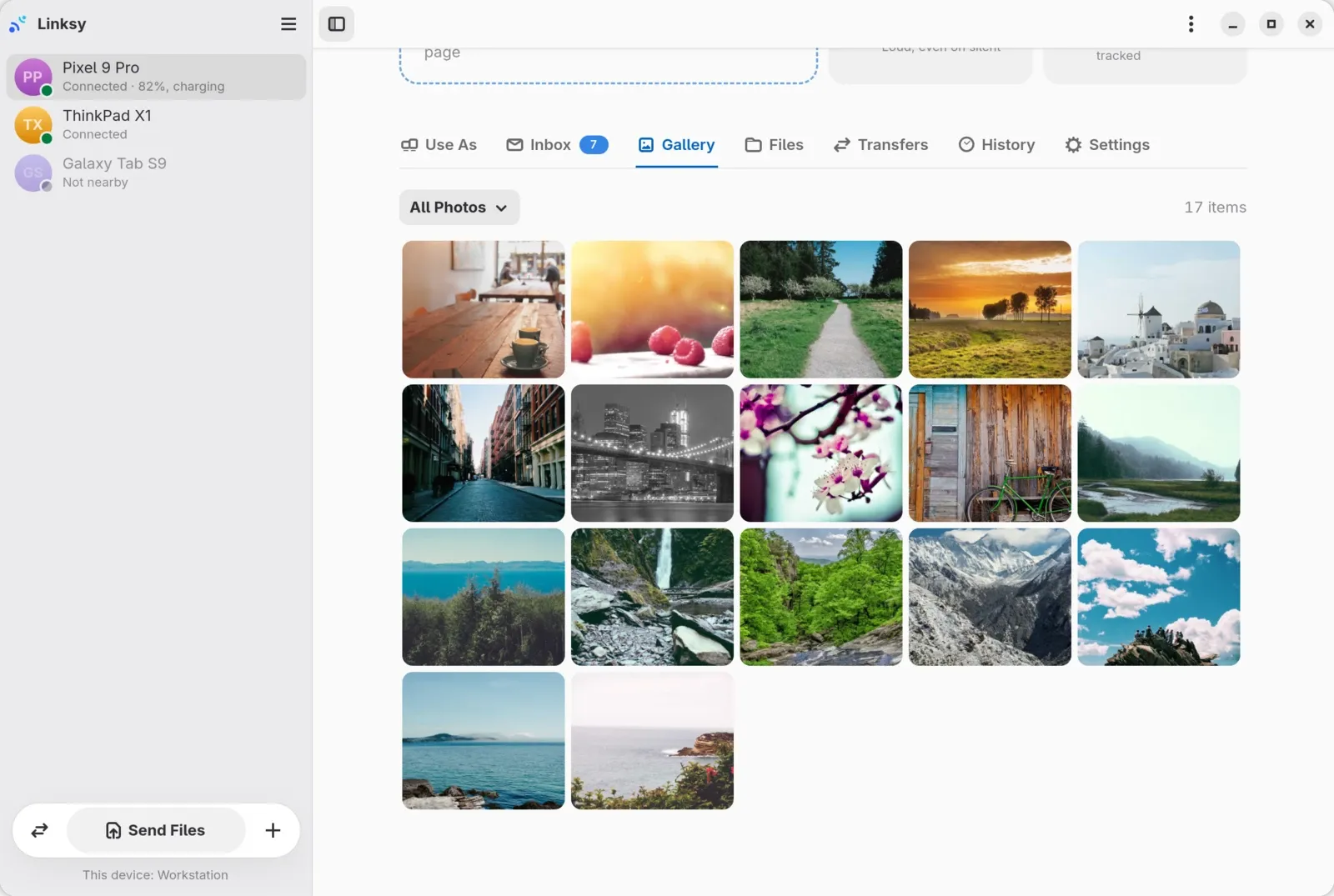
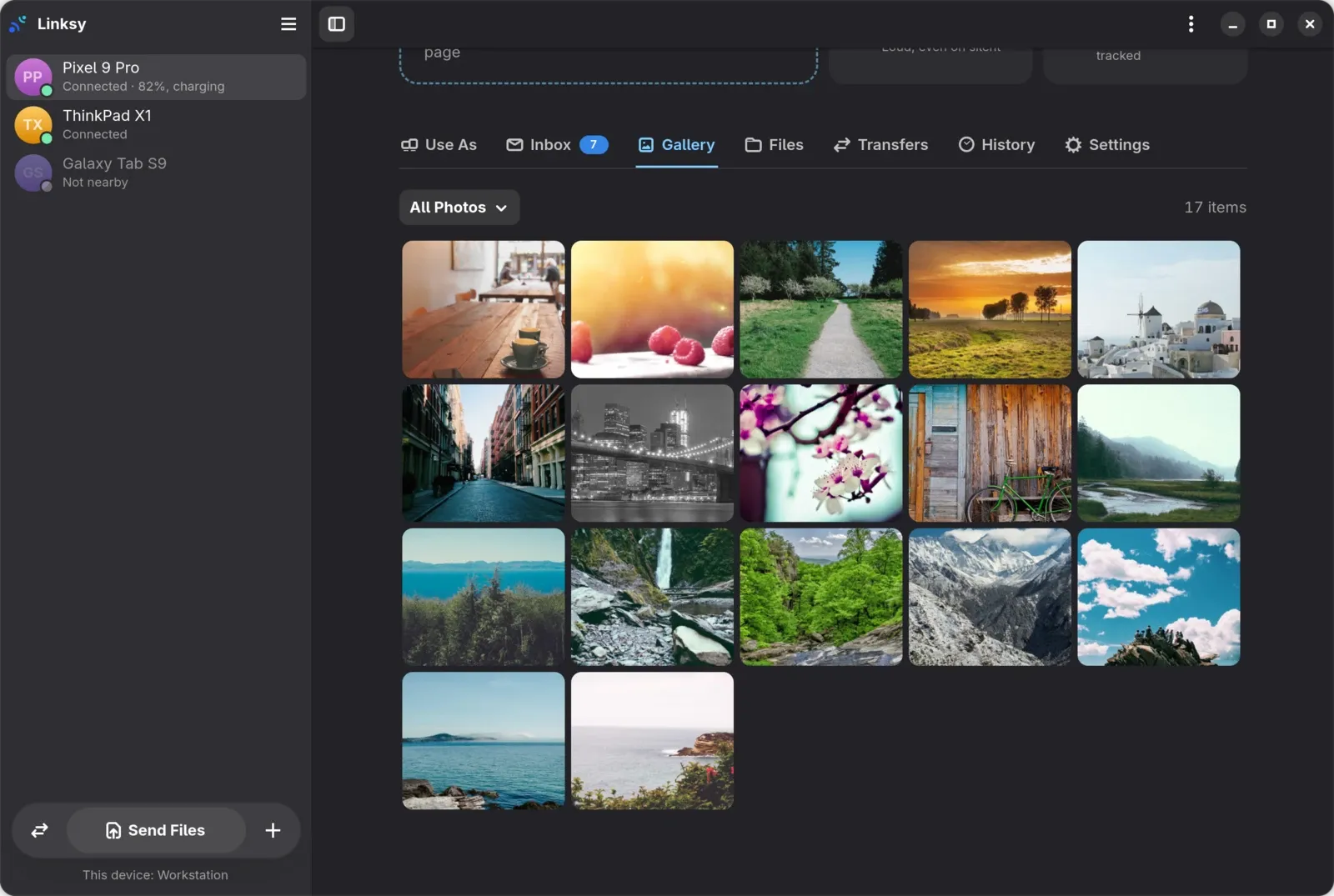
The Gallery tab shows on a phone's page once the phone shares its photos. That takes a switch in Linksy on the phone, and Android's permission to see photos and videos.
What you need
- Linksy 0.12 or newer on the computer, and Linksy for Android 0.3.3 or newer on the phone. Both are on the download page.
- The phone paired with the computer.
Turn it on
- On the phone, open Linksy, then Settings › Files.
- Turn on Photos on your computers.
- When Android asks about photos and videos, choose Allow all. Picking only some photos isn't enough for the Gallery.
- On the computer, open the phone's page and its Gallery tab. Pick an album, select photos and choose Save to Pictures.
What the messages mean
- This phone doesn't share its photos. Photos on your computers is off, or Android hasn't allowed it yet. Do steps 1 to 3 above.
- Linksy isn't allowed to see this phone's photos. Android's permission is missing. See below.
Android doesn't ask any more
After you say no once or twice, Android stops asking. Allow it from Android's settings instead:
- Open Linksy's App info: hold Linksy's icon and tap App info, or go to Settings › Apps › Linksy.
- Tap Permissions › Photos and videos, and choose Allow all.
- Open Linksy on the phone once. The Gallery tab shows up on the computer.
If you gave Linksy All files access for its file sharing, that covers photos too.
The Gallery tab is missing
The computer only shows the tab while the phone says it shares its photos: the switch on and Android's permission given. Check both, open Linksy on the phone once, and the tab appears within a few seconds. Make sure the computer runs Linksy 0.12 or newer.
Still stuck?
Tell us on GitHub what you see, your phone's model and its Android version.