Use your Android phone as a Stream Deck for Linux
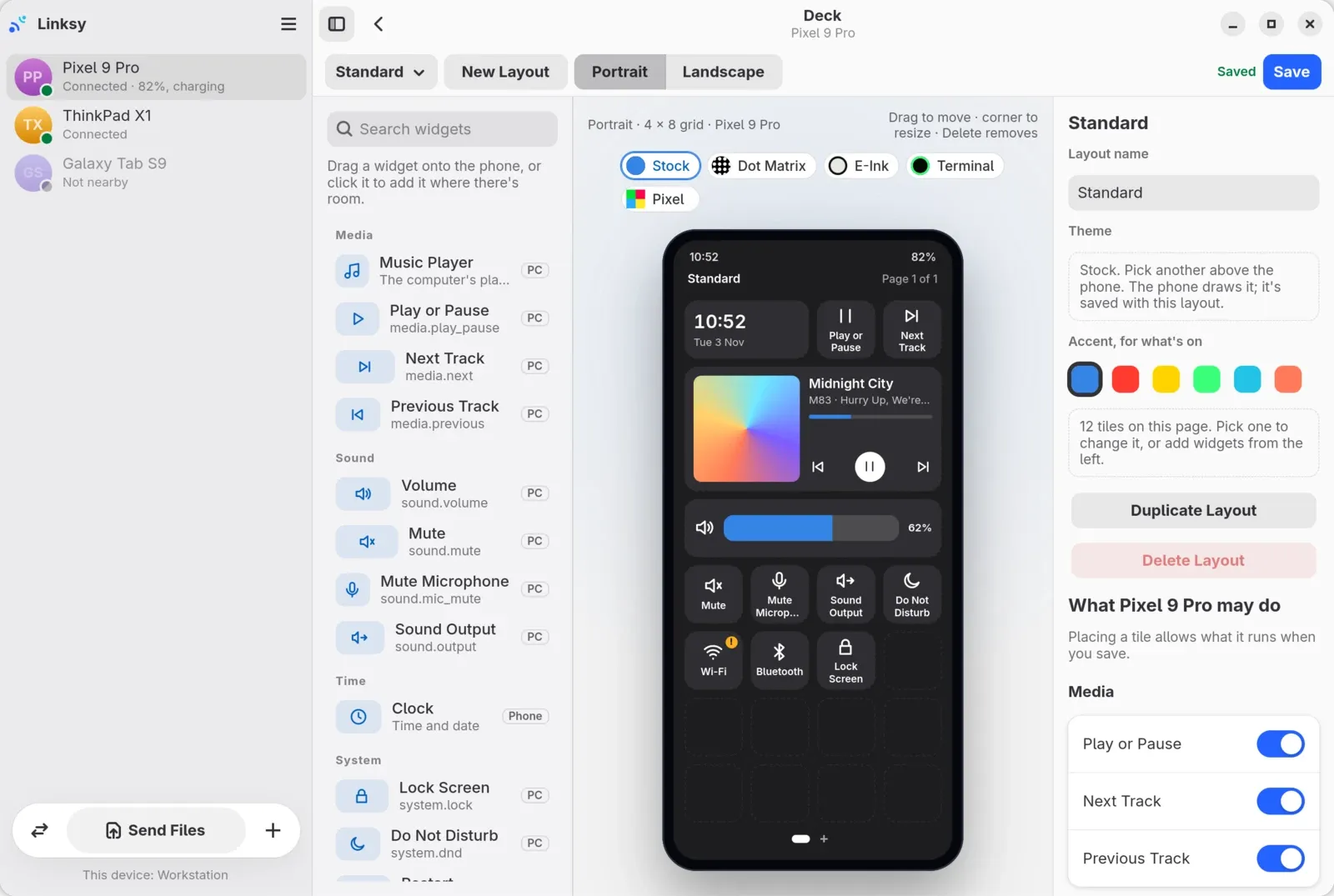
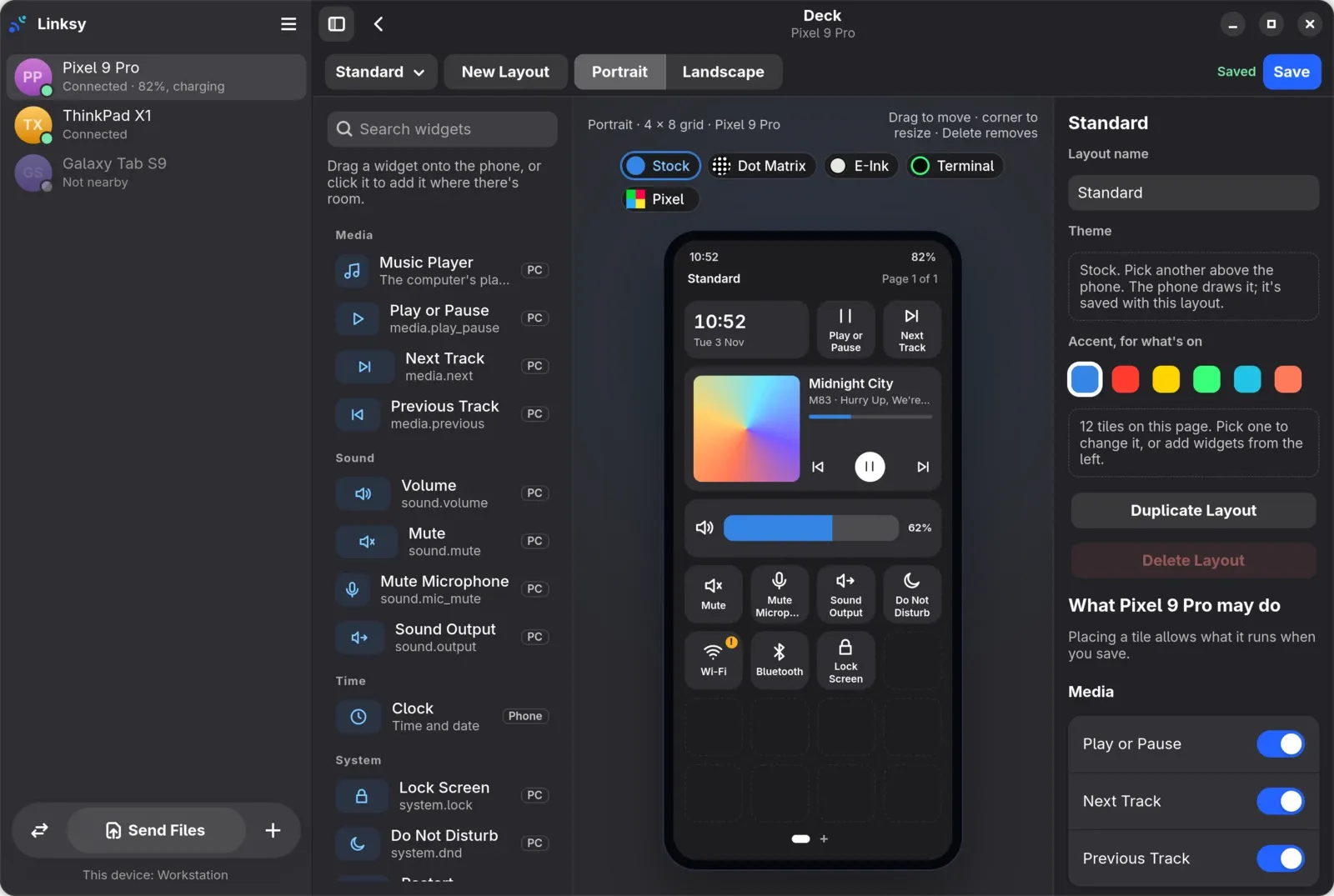
Linksy's Deck turns your Android phone into a deck of buttons for your Linux computer, like a Stream Deck: play, pause and skip, set the volume, mute the microphone, switch the sound output, lock the screen, turn on Do Not Disturb or run commands of your own. You lay it out on the computer, on a phone drawn true to size, and the phone shows it with the computer's music, a clock and the volume on it.
What can the buttons do?
Everything runs on the computer, and each button is offered only where the computer can do it:
| Group | Buttons |
|---|---|
| Media | Play or pause, next, previous, and a music tile with the cover, the title and the progress |
| Sound | Volume, mute, mute the microphone, and Sound Output, which moves the sound to the next output |
| System | Lock the screen, Do Not Disturb, restart, shut down |
| Network | Wi‑Fi, Bluetooth, airplane mode |
| Power | The power modes, such as power saver and balanced |
| Your commands | A name and a command line, run on the computer |
Toggles like mute, Wi‑Fi and Do Not Disturb show whether they're on, and the volume is a slider.
How do I set it up?
- Install Linksy on the computer and the Android app on the phone, and pair them by scanning the QR code in Add Device.
- On the computer, open the phone's page. In its Use As tab, the Deck card's Choose Actions… opens the deck for that phone.
- On the phone, open the computer's page and choose Control, then Deck.
Before you change anything, the deck already has a layout made from what the computer offers, so you can try it straight away.
How do I lay it out?
In the GTK app, Choose Actions… opens the Deck editor: the phone drawn true to size in the middle, the widgets on the left and the settings on the right.
- Add a tile: drag a widget onto the phone, or click it to add it where there's room.
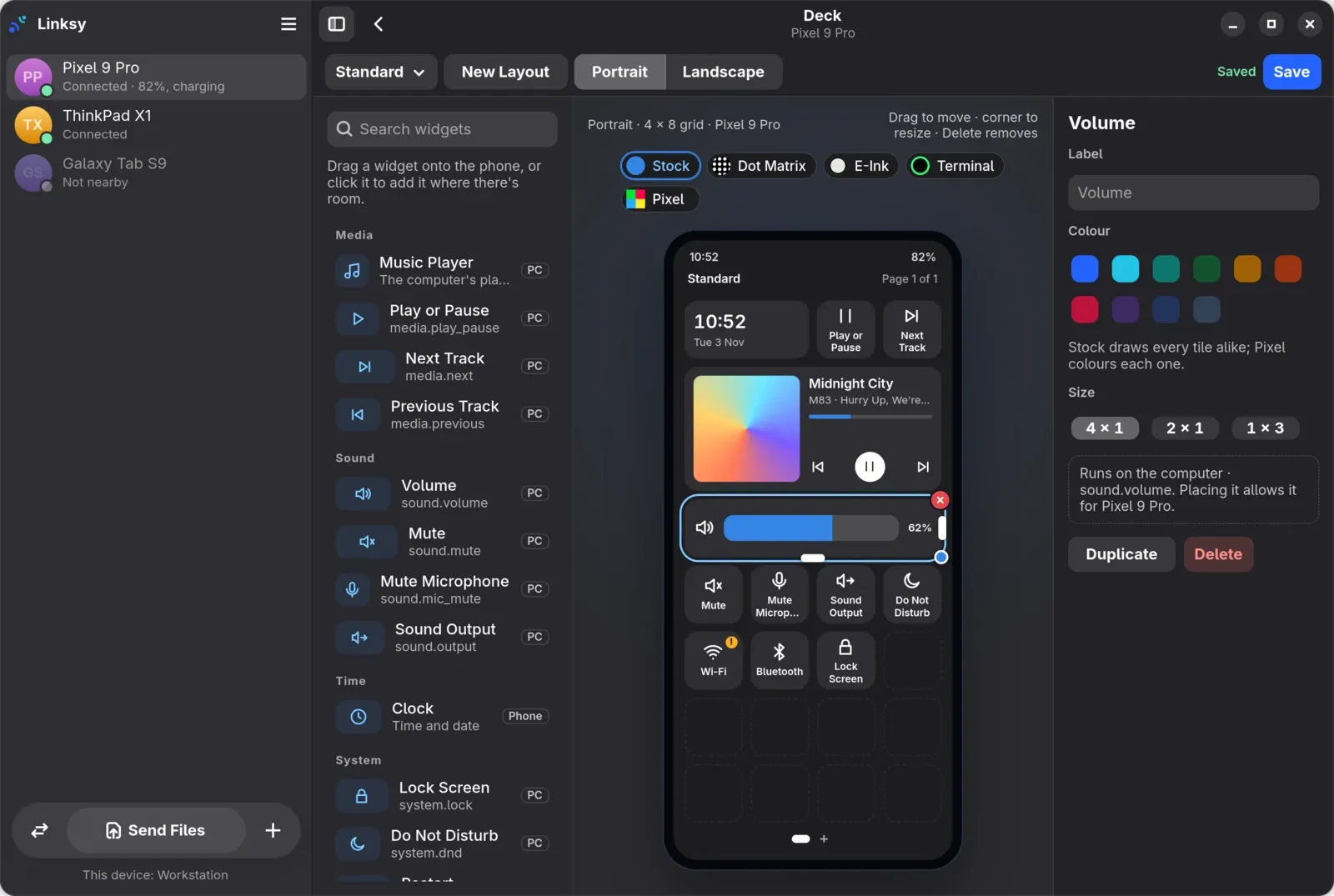
- Move and resize: drag a tile to move it, pull its corner to resize it, and Delete removes it.
- Change a tile: pick it to set its label, its colour and its size.
- Layouts: keep several, one for work and one for music, say, with New Layout, Duplicate Layout and the layout menu at the top.
- Save sends the layout to the phone.
The Qt app for KDE Plasma lists the actions to turn on or off for now, and gets the editor next.
Portrait and landscape
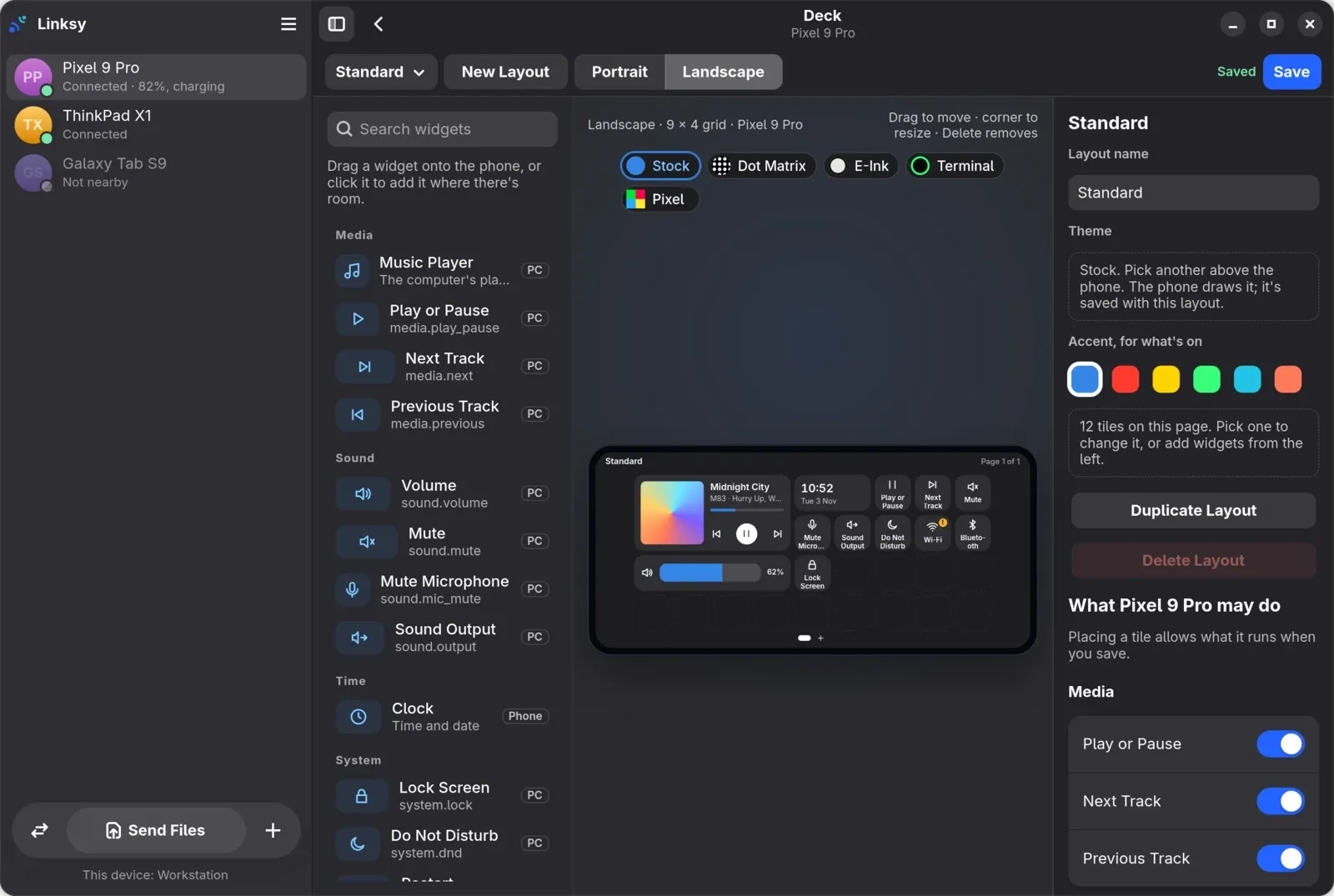
Each layout has a face for the phone upright, on a grid four tiles wide and eight high, and one for the phone on its side, nine wide and four high. Switch between them with Portrait and Landscape at the top of the editor.
Which actions may the phone run?
Only the ones you allow, phone by phone. Under What Pixel 9 Pro may do (your phone's name) in the editor, each action has a switch. Music, sound, lock, Do Not Disturb, Wi‑Fi, Bluetooth and the power modes start on. Restart, shut down, airplane mode and your own commands stay off until you allow them, by turning them on there or by placing a tile for them and saving. If a phone asks for anything else, the computer refuses it.
Does it ask before restarting?
Yes. Restart and shut down ask on the phone before they run, with the computer's name in the question, so a stray tap doesn't turn the computer off. Wi‑Fi and airplane mode ask too, since turning them off can cut the phone off from the computer.
Pick a look
Five looks come with the editor: Stock, Dot Matrix, E-Ink, Terminal and Pixel. Pick one above the phone, and an accent colour for what's on. Stock draws every tile alike; Pixel colours each one.
On the phone, hold the deck's name to change its look there. It has the computer's five, plus three of its own: Signal, Glass and Midnight.
Add commands of your own
In the editor's widgets, Your Commands has Add Command…: give it a name and a command line, and it becomes a button for the deck that runs the command on the computer, as if typed in a terminal. A backup script, a deploy, a shortcut to a project: anything you'd run yourself.
Like restart and shut down, your commands stay off until you allow them, for each phone.
What does the phone show?
Linksy for Android 0.3.3 draws the layouts and the looks you made on the computer, with several pages when you need them, the computer's music with its cover and buttons, a clock and the volume. While the deck is open, the phone keeps its screen on and dims it after a minute.
What do I need?
- Linksy 0.12.1 or newer on the computer, from the download section. The editor is in the GTK app, for GNOME and most desktops; the Qt app for KDE Plasma gets it next.
- Linksy for Android 0.3.3 or newer on the phone.
- For some buttons, the usual tools: NetworkManager for Wi‑Fi, and a power profiles service (
powerprofilesctl) for the power modes. Without them, those buttons aren't offered.
Is it a real Stream Deck?
No keys to press: it's the phone you already have, with a touchscreen, over the same connection as the rest of Linksy. What it shares with a Stream Deck is the idea, a page of buttons you lay out yourself for the things you do every day. It's free and open source, and it's one of many things Linksy does: see the features, or read about the phone's messages on the computer.