Turn on the Inbox: your phone's messages in Linksy
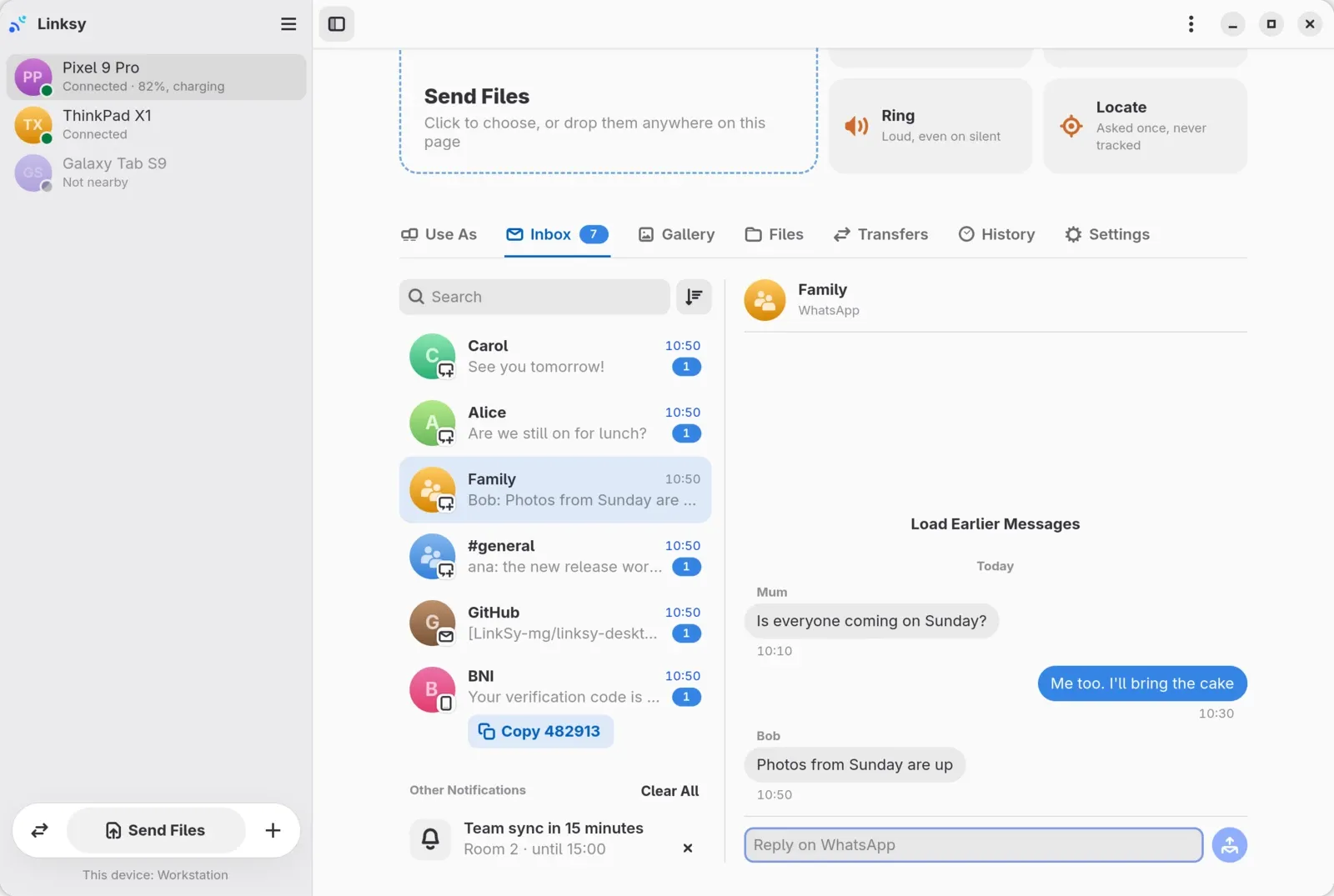
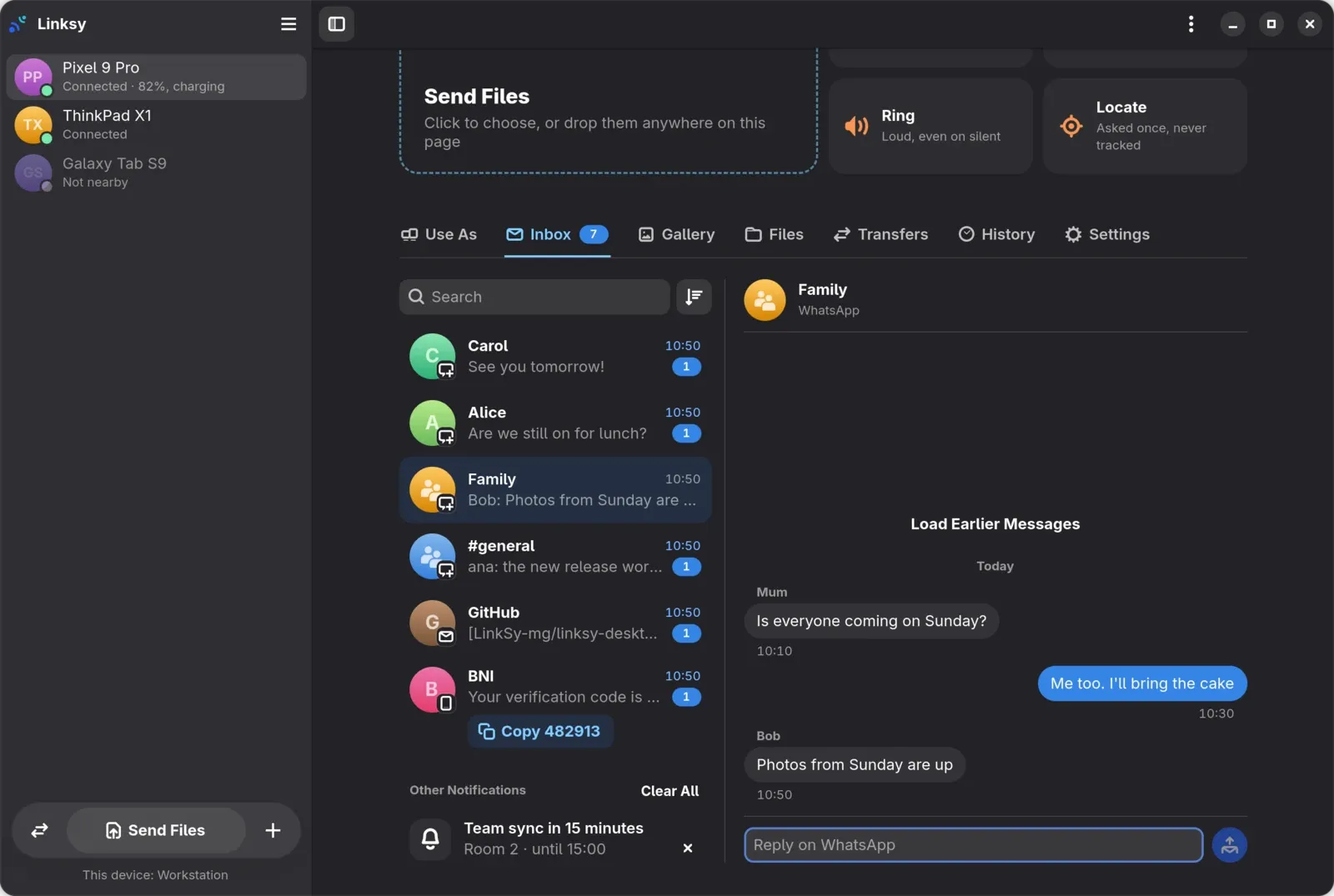
The Inbox tab shows on a phone's page once the phone shares its notifications. That takes one switch in Linksy on the phone, and Android's notification access, which Android only gives Linksy when you say so.
What you need
- Linksy 0.12 or newer on the computer, and Linksy for Android 0.3.3 or newer on the phone. Both are on the download page.
- The phone paired with the computer.
Turn it on
- On the phone, open Linksy, then Settings › With your computers.
- Turn on Show this phone's notifications.
- Android opens its Notification access page. Turn Linksy on there, confirm, and come back to Linksy.
- On the computer, open the phone's page. The Inbox tab is there, and messages show up in it as they arrive.
If the switch says Android hasn't allowed it yet, step 3 isn't done: tap it to go back to Android's page.
Android's switch is greyed out
Android 13 and newer do that for apps installed from a browser rather than a store. To allow it:
- Try to turn on notification access once, so Android blocks it. It only offers the way around after that.
- Open Linksy's App info: hold Linksy's icon and tap App info, or go to Settings › Apps › Linksy.
- Tap ⋮ at the top right, then Allow restricted settings, and confirm.
- Back in Linksy, turn on Show this phone's notifications again. Android's switch works now.
The Inbox is empty
- It starts from now. Messages that came before you turned it on aren't there. New ones are.
- Linksy sees what the phone shows. If an app's notifications are off on the phone, its messages don't reach the computer either.
- The phone and the computer have to reach each other: on the same Wi-Fi, or anywhere with away from home on.
Messages stop after a while
Android stops apps in the background to save battery, and some phones do it hard: Xiaomi, Samsung, Oppo, Vivo, OnePlus and Huawei among them. On the phone, open Linksy, then Settings › Connection, turn on Keep running in the background, and follow Keep Linksy alive, which lists the steps for your phone's maker.
Some messages can't be answered
Linksy answers through the reply field in the app's notification. When an app's notification has none, you can read its messages on the computer but answer them on the phone. The Inbox guide has the rest: replies, codes copied to the clipboard and what's kept.
Still stuck?
Tell us on GitHub what you see, your phone's model and its Android version.