Experimenting with Linksy: give your old phones a job
Linksy isn't only one phone and one computer: every device you pair can work with the others. One computer can use an old phone as its deck, another as its microphone, a third as its webcam and a tablet as a second display, all at the same time. Computers share screens and displays with each other, and phones send each other files. Here are setups to try, what you need for each, and what doesn't work yet. I checked every one against Linksy's code.
What can connect to what?
| Phone and computer | Phone and phone | Computer and computer | |
|---|---|---|---|
| Files | Yes, Wi‑Fi Direct for big ones | Yes, Wi‑Fi Direct for big ones | Yes, through the router |
| Clipboard and Ping | Yes | Yes | Yes |
| See and control a screen | The phone sees and controls the computer; the computer sees the phone | No | Yes, View Screen and Take Control |
| Second display | A phone or tablet, for the computer | No | Yes, a laptop for a desktop |
| Webcam and microphone | The phone's, for the computer | No | Yes, one computer's for another |
| Touchpad, Deck, Terminal | The phone, for the computer | No | No |
| Inbox, Gallery, the phone's files | On the computer | No | No |
Recipe: how do I build a desk from old phones?
Three old phones and a tablet, each with one job, for one computer:
- The deck: buttons for music, volume, the microphone, locking and your own commands.
- The microphone, near your mouth, for calls and recordings.
- The webcam, on a stand at eye level.
- The second display: the tablet, for chat, notes or a music player.
What you need
- A Linux computer with Linksy 0.12.1 or newer. For the second display, GNOME, KDE Plasma, Hyprland or Sway on Wayland.
- The phones and the tablet with Linksy for Android 0.3.3 or newer, each paired with the computer. Old is fine, as long as they run the app: none of these jobs needs Wi‑Fi Direct.
- Chargers. The deck and the display keep their screens on.
- For the webcam in browsers and Zoom, the camera driver that Finish Setup installs. Without it, PipeWire apps such as OBS still get it.
How
- The deck. On the computer, open the first phone's page, then Use As › Deck › Choose Actions…, lay out its buttons and save. On that phone, open the computer's page and tap Deck, under Control. More in the Deck guide.
- The microphone. The second phone's page › Use As › Microphone › Start Microphone, then Allow on the phone. Pick "Linksy Microphone" with the phone's name in your call or recorder.
- The webcam. The third phone's page › Use As › Webcam › Start Webcam, then Allow on the phone. Your apps list it as Linksy Camera.
- The second display. The tablet's page › Use As › Second Display › Extend Desktop, then Allow on the tablet. It fills the tablet's screen, and touch works as the mouse.
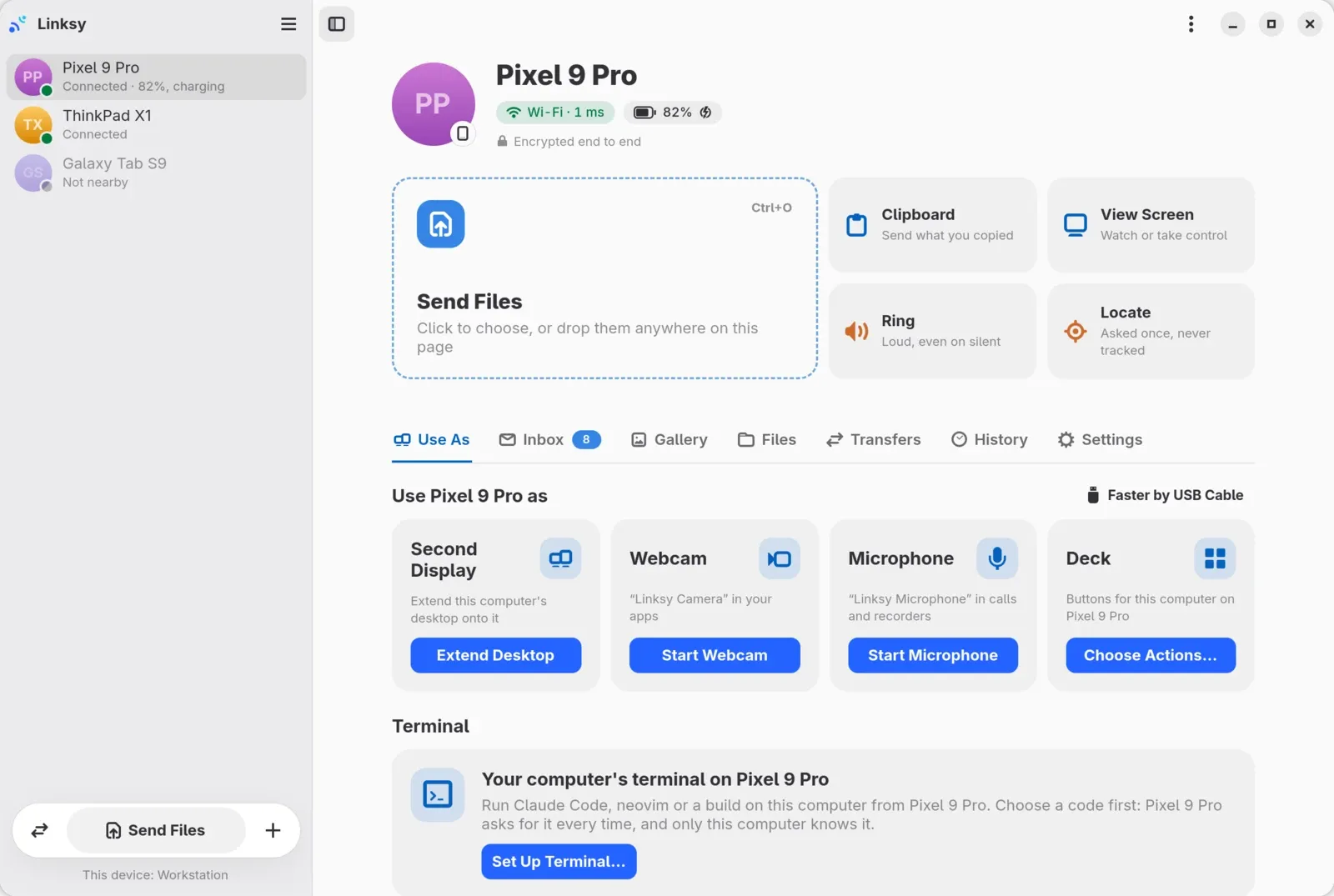
Does it all run at once? Yes. The webcam, the microphone and the second display are three separate sessions, each with its own phone, and the deck isn't a session at all: the computer runs its buttons one by one, for that phone only. The webcam and microphone phones can turn their screens off; Linksy keeps them going in the background, with a notification and a Stop button. Each phone asks before its webcam, microphone or display starts, so tap Allow on each one, every time.
One more tip: turn on Lock When Away for the phone in your pocket, not for the ones on the desk. The computer locks when that phone leaves; the desk phones never leave.
Can a computer use two webcams or two microphones at once?
Not yet: one webcam and one microphone at a time, from one phone or from two. With the camera driver, every phone's camera arrives on the same Linksy Camera device, so a second camera has nowhere to go, and Linksy's window keeps track of one webcam, one microphone and one second display. Two camera angles for a stream, or two microphones for a podcast, aren't a Linksy job yet.
The same phone can be the webcam and the microphone at once, though.
Recipe: a video call with two phones
What you need: an old phone on a stand and the phone you carry, both with Linksy for Android 0.3.3, and Linksy 0.12.1 on the computer.
- The old phone is the webcam, and the microphone too if you like. Its camera controls, zoom, focus, the torch and 1080p, are on the computer, under the camera's preview.
- Your phone is the deck: mute the microphone, set the volume, pause the music. See the webcam guide for calls for picking Linksy Camera in Meet, Zoom or Discord.
- Your phone's messages come into the computer's Inbox during the call, so you can read them without picking the phone up. That needs Notification access for Linksy on your phone; here's how.
Recipe: give a talk with a tablet and two phones
What you need: a laptop with Linksy on Wayland (GNOME, KDE Plasma, Hyprland or Sway), a tablet, your phone, an old phone.
- The tablet is a second display on the lectern: put your speaker notes on it.
- Your phone is the clicker: the computer's page › Remote, then its Slides tab.
- The old phone, near you, is the microphone for the recording.
Three devices, three sessions, one laptop. The laptop asks when the Remote starts, unless you chose Always Allow for your phone.
Recipe: three computers
What you need: Linksy on each computer, paired: open Add Device on both and they find each other, or use Pair by Address… on one. Say a desktop, a laptop and an old PC in the living room:
- The laptop as the desktop's second display. On the desktop, the laptop's page › Use As › Second Display › Extend Desktop. The laptop asks, then shows it full screen, and its own keyboard and touchpad work on it; F11 leaves full screen. The desktop needs GNOME, KDE Plasma, Hyprland or Sway on Wayland.
- The living-room PC, from your desk. Its page › View Screen, then Take Control. The first time, someone at that PC says yes and picks the screen; with Always Allow Screen and Control turned on there for your desktop, it stops asking on the same network.
- A webcam for a computer that has none. The laptop's page › Use As › Webcam: the laptop's own camera, at 720p and 30 fps, becomes the desktop's Linksy Camera. Its microphone works the same way. From a terminal:
linksy camera laptopandlinksy mic laptop. - Files and the clipboard between any two, in every direction.
What computers don't do with each other: open a terminal (only a phone does; between computers, SSH does it), run a deck, or make a Wi‑Fi Direct link. A computer can't host one, so files between computers always go through the router.
Recipe: an office without USB sticks
Four computers in a small office, each paired with the other three. Anyone sends anything to anyone, straight across the office network: no USB stick, no email to yourself, no shared drive and no cloud account.
What you need: Linksy on each computer, all on the same office network, by Wi‑Fi or cable. Linksy runs on Linux; Windows and Mac computers can't join.
How
- Install Linksy on each computer, from the download section.
- Pair each computer with each of the others, once. On one, open Add Device; on the other, it shows up under Nearby, Not Paired: click Pair, and confirm when both show the same code. Pairing is per pair, so four computers make six pairings, about a minute each.
- Turn on Accept From Paired Devices in Preferences on each computer, so files from the others arrive without a question.
- Send. Drop files or a whole folder on a computer's page in Linksy, or from a terminal:
linksy send "Front desk" report.pdf. They land in Downloads › Linksy on the other computer.
What to expect
- Any size, folders too. A transfer cut by the network picks up where it stopped, and every byte is checked before the file is saved.
- The network sets the speed. Between computers, files go over the office network: there's no Wi‑Fi Direct between computers. Linksy itself moves about 360 MB/s, so on a wired gigabit network the cable is the limit, a little over 100 MB/s at best, and Wi‑Fi is slower than that.
- The clipboard too: copy on one computer, then Clipboard on another's page.
- Copies, not a shared folder. Linksy sends a copy; it doesn't keep a folder in sync between computers.
- Nothing leaves the office. No server and no account: files go from one computer to the other, encrypted end to end.
For whoever runs the network: Linksy finds devices with mDNS (_linksy._udp) and talks QUIC over UDP, on port 47200 by default, or another one if that's taken. A guest network that keeps devices apart from each other stops it.
Can two phones use the same computer at once?
Yes. Each phone has its own deck, with its own layouts and its own list of what it may run, and several phones can have theirs open at the same time. A phone's Remote, its view of the screen and its terminals are sessions of their own, and the computer asks for each one; Always Allow skips that for the screen and the Remote. I haven't tried two phones moving the same pointer at the same time; nothing in Linksy stops it.
Recipe: phone to phone
Two phones pair with each other the way a phone and a computer do, and send files, the clipboard, links and pings, with Wi‑Fi Direct for big files. Screens, webcams and the rest stay between phones and computers. The details, and how it compares with Quick Share: phone to phone on Android.
Recipe, just for fun: a mirror of a mirror
On the computer, open a phone's page and View Screen: that phone's screen shows in a window. On a second phone, open the computer's page › See its screen › Watch. The second phone now shows the first phone's screen, through the computer. Each hop adds its own delay, so it's no use at all, but it's two ordinary sessions and Linksy runs both.
Do these work away from home?
Partly. Away from home, files, the clipboard, links and Find it work as they do at home. Screens, the touchpad, the webcam, the microphone and a second display are refused unless you turn on Allow Everything From Away for that device, and even then each is asked for every time, with no Always Allow. So the desks above are for home, and a computer you control from far away needs someone there to say yes. How away from home works.
What doesn't work yet?
- Two webcams or two microphones on one computer at the same time.
- Screens, the touchpad, a webcam, a microphone, a second display or the deck between two phones.
- A terminal or a deck between two computers.
- Wi‑Fi Direct between two computers.
- A remote desktop from away with nobody at the computer: it always asks.
Tried a combination that isn't here, or want one of these? Open an issue. Linksy is free and open source, and the rest of what it does is on the home page and the blog.